




















How to Host a Return to Moria Dedicated Server (Full Setup Guide)
What Is a Return to Moria Dedicated Server?
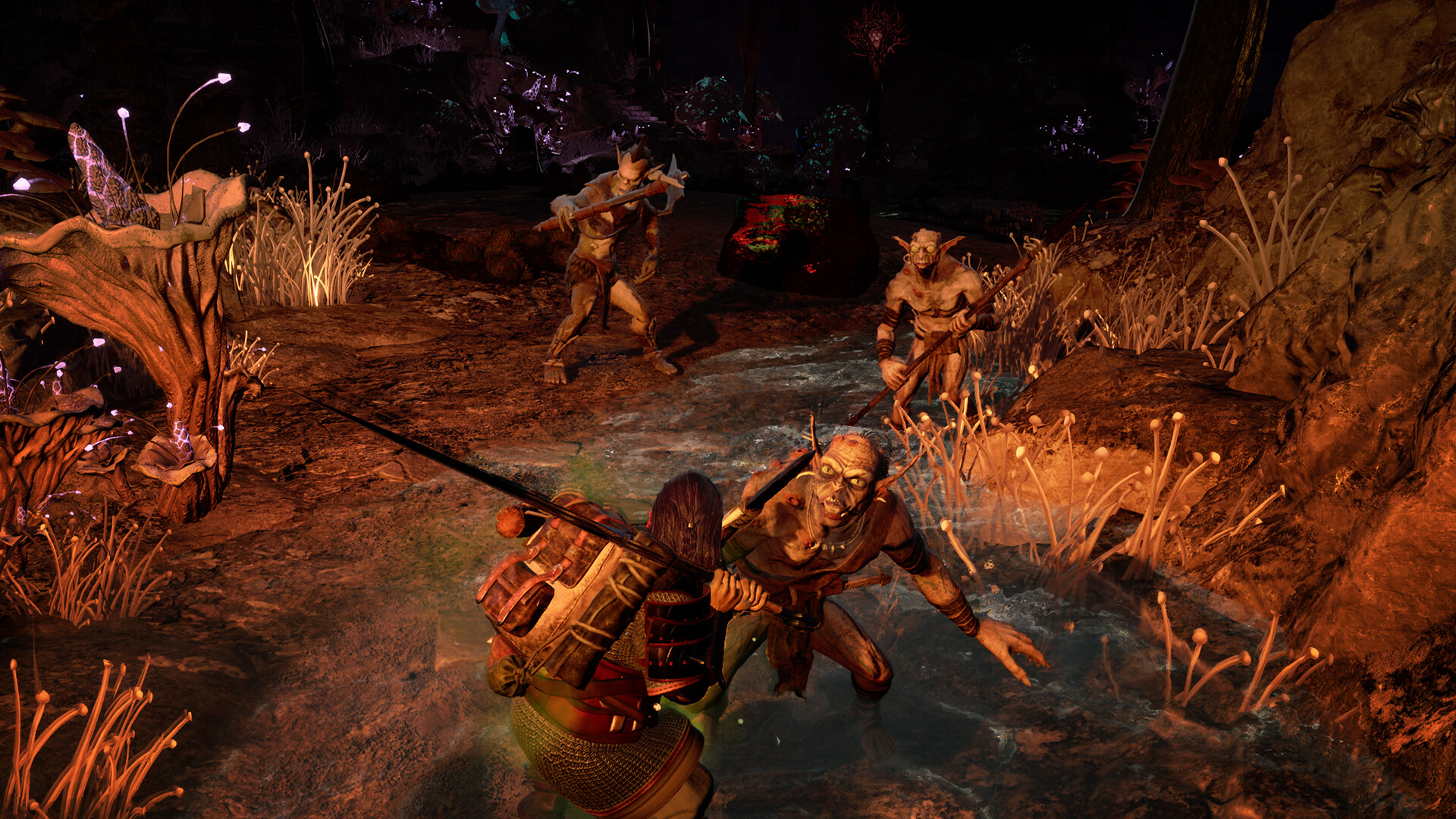
Hosting a dedicated server for The Lord of the Rings: Return to Moria allows you to create a persistent world that stays online even when you’re not playing. While servers can only be hosted on Windows PCs, players on PC, PlayStation 5, and Xbox Series X/S can all join thanks to full crossplay support. This makes dedicated hosting ideal for long‑term co‑op worlds, community servers, or private sessions with friends.
Return to Moria Dedicated Server Requirements
Minimum System Requirements for Hosting
To run a stable Return to Moria server, your system must meet the following minimum specs:
- OS: Windows 10/11
- CPU: Intel® Core™ i5 or equivalent
- RAM: 8GB
- Storage: SSD (size varies based on world saves)
- Internet: At least 5 Mbps upload recommended
Recommended Specs for Hosting and Playing on the Same PC
If you plan to host and play on the same machine, stronger hardware ensures smoother gameplay and server performance.
- CPU: Intel® Core™ i7 or equivalent
- RAM: 16GB
- Storage: NVMe SSD
How to Set Up a Return to Moria Dedicated Server
Step‑by‑Step Guide to Installing the Server
Return to Moria supports crossplay between Steam and Epic, but this guide focuses on the Steam version for simplicity.
1. Download the Server Software
- Install the dedicated server files via Steam/Epic or the official documentation.
- Download SteamCMD to install the server files.
- The dedicated server App ID is 3349480.
- Run
MoriaServer.exeonce to generateMoriaServerConfig.ini.
Server Configuration Options Explained
Before launching your server, you’ll need to adjust the configuration file to match your preferred settings.
| Option | Default | Description |
|---|---|---|
| ListenPort= | 7777 | The port your server listens on. Change if needed. |
| AdvertisePort= | 7777 | Usually matches the listen port. |
| Type= | campaign | Controls world generation for new worlds. |
2. Set Up Port Forwarding
To allow players to join your server, you must forward the correct port.
- Forward UDP 7777 (or your custom port).
- If your router doesn’t support hairpinning, LAN players must use the server’s local IP.
3. Launch the Server
- Run
MoriaServer.exeagain. - Share your join code or public IP with players.
Hosting Return to Moria on a Secondary PC or NAS
Running the Server on Another Machine
If you prefer to keep your main PC free, you can host the server on a secondary system.
- Copy the server files to the secondary machine.
- Use Remote Desktop or SSH for headless management.
- Forward the correct port to the secondary machine’s IP.
Best Return to Moria Server Hosting Providers
Top Third‑Party Hosting Companies
If you want a plug‑and‑play solution, several hosting providers offer Return to Moria servers with automated setup and management.
| Provider | Available Regions |
|---|---|
| Citadel Servers | USA, Canada, Europe, Asia, Oceania |
| Nitrado | USA, Canada, Europe, Asia, Oceania |
Return to Moria Server Customization Guide
Editing MoriaServerConfig.ini
This file controls your world settings, ports, and gameplay parameters. Adjust it before launching your server for the first time.
Managing Player Permissions on Your Server
How to Use permissions.txt
The permissions.txt file lets you control what each player can do.
Important: Only edit this file while the server is offline.
Permission Levels Explained
| Permission | Description |
|---|---|
| Blocked | Prevents the player from joining. |
| Default | Uses the default permission set. |
| NoConstruction | Disables building and deconstructing. |
| QuickBuild | Allows quick‑building only. |
| AllConstruction | Full building rights. |
| NoStorage | Blocks access to storage and shared crafting. |
| AllStorage | Full storage access. |
Optimizing Return to Moria Server Performance
Tips for Better Stability and Lower Lag
- LoadedAreaLimit: Set to
8for small servers to reduce CPU/RAM load. - ServerFPS: Lower to
30on weaker hardware. - Monitor Usage: Use Task Manager or Resource Monitor.
Backing Up and Restoring Your Server
Where Return to Moria Saves World Files
Your world saves are stored in:
Return to Moria Dedicated Server\Moria\Saved\Worlds
Copy this folder regularly to avoid data loss.
Return to Moria Server Security Tips
How to Protect Your Server
- Use strong passwords in
MoriaServerConfig.ini. - Whitelist trusted IPs when hosting publicly.
- Keep Windows and router firmware updated.
Return to Moria Modding Support
How to Install Mods on Your Server
- Place mods in
Moria\Mods. - All players must have the same mods installed.
- Check the Modding Discord for tools and updates.
How to Update Your Return to Moria Server
Automatic Updates via SteamCMD
Enable SteamCMD to keep your server updated automatically.
Manual Update Steps
- Check the official site for new patches.
- Replace server files (back up
Moria\Savedfirst).
Common Return to Moria Server Issues and Fixes
| Issue | Fix |
|---|---|
| “Connection Timed Out” | Ensure UDP 7777 is forwarded and firewall rules allow traffic. |
| CGNAT | Use a VPN, proxy, or third‑party hosting. |
| Hairpinning Issues | LAN players must use the local IP. |
| World Not Loading | Check for corrupted world files. |
| High Ping | Lower LoadedAreaLimit or upgrade bandwidth. |
Troubleshooting Your Return to Moria Server
Where to Find Logs
Logs are located in:
Return to Moria Dedicated Server\Moria\Saved\Logs
Official Support Resources
- Return to Moria Discord
- Official Website Guides
Return to Moria Dedicated Server FAQs
Can I host and play on the same PC?
Yes, but performance may suffer unless your hardware exceeds both game and server requirements.
Do I need a static IP?
No — join codes work without one.
Glossary of Networking Terms
- CGNAT: Carrier‑Grade NAT that blocks port forwarding.
- UPnP: Automatic port forwarding (router must support it).
- Hairpinning: Allows local devices to connect via public IP.