





















StarRupture Dedicated Server Setup Guide (Steam & Windows)
Hosting a dedicated StarRupture server lets you and your friends explore a persistent sci‑fi world that stays online even when no one is actively playing. Much like other modern co‑op titles that support dedicated hosting, running your own server gives you full control over world settings, uptime, and who can join your game.
What is StarRupture?
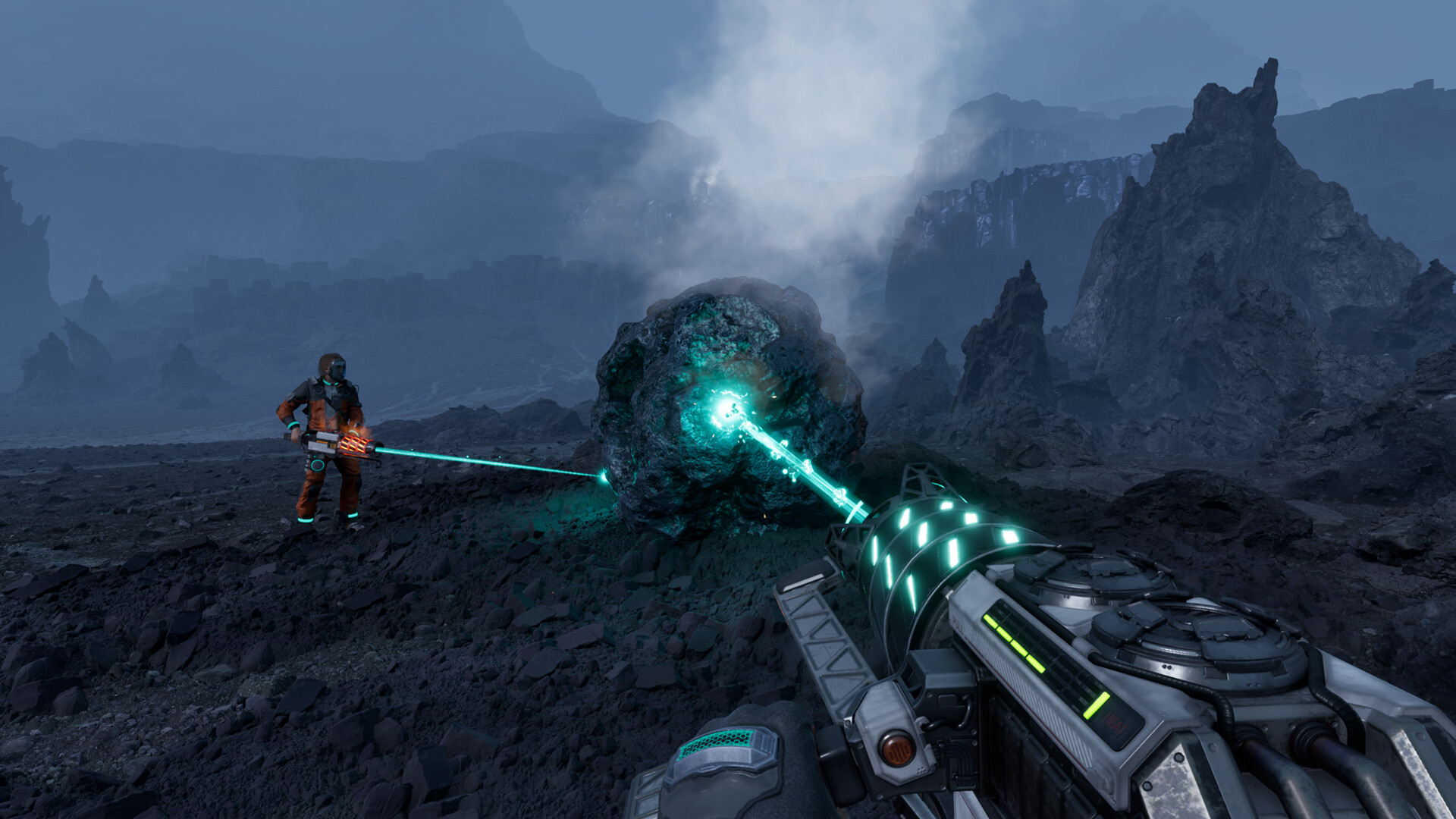
StarRupture is a first-person open world base-building game with advanced combat and tons of exploration. Play alone or in a group on this sublime and ever-changing planet, extract and manage resources, create your complex industrial system and fight off hordes of alien monsters. It’s being released on January 6th 2026 on the Steam store.
What is a StarRupture dedicated server?
A StarRupture dedicated server is a standalone application that runs the game world without needing the main game client open. Players connect to this server over the internet or LAN, while the host machine focuses purely on simulation and networking. This is ideal for:
- Persistent worlds: Your base, factories, and progress remain online 24/7.
- Co‑op sessions: Friends can join even when the original host is offline.
- Community servers: Run your own rules, mods, and progression pace.
System requirements for hosting
While StarRupture’s exact official server specs may evolve during Early Access, you can use typical modern dedicated‑server baselines similar to other co‑op survival games. For a small group of friends, a mid‑range Windows PC is usually sufficient.
Minimum suggested specs (hosting only)
- OS: Windows 10 or Windows 11 (64‑bit)
- CPU: Quad‑core processor (e.g., Intel® Core™ i5 or equivalent)
- RAM: 8 GB
- Storage: SSD for faster world loading and saving
- Network: At least 5 Mbps upload for stable online play
Recommended specs (hosting & playing on the same PC)
- CPU: Higher‑end processor (e.g., Intel® Core™ i7 or equivalent)
- RAM: 16 GB or more
- Storage: NVMe SSD for best performance
If you plan to host larger groups or heavily modded worlds, consider a dedicated machine or professional game server hosting provider for more consistent performance.
Installing the StarRupture dedicated server via Steam
StarRupture uses the Steam ecosystem for distribution, similar to other titles that expose a dedicated server tool through the Steam Library or SteamCMD. The official knowledge base article referenced by the community explains how to install the server using the Steam “Tools” section or SteamCMD, depending on your setup.
Option 1: Steam Library dedicated server tool
- Open Steam: Log into the Steam account that owns StarRupture.
- Go to Library > Tools: Look for a “StarRupture Dedicated Server” entry (name may vary).
- Install the tool: Choose the install location on an SSD if possible.
- Run once: Launch the dedicated server tool once to generate default configuration files, then close it.
Option 2: Installing via SteamCMD
If you prefer a more scriptable or headless setup (for example on a secondary PC or server), you can install the StarRupture dedicated server using SteamCMD, similar to other games that provide a free dedicated server app ID.
- Download SteamCMD: Get the Windows version from Valve’s official documentation.
- Extract SteamCMD: Place it in a folder such as
C:\steamcmd. - Run SteamCMD: Open a command prompt and launch
steamcmd.exe. - Login: Use either an anonymous login (if supported) or a Steam account, as described in the official StarRupture server article.
- Install the server: Use the documented StarRupture dedicated server App ID and an install directory, for example:
force_install_dir C:\StarRuptureServer app_update 3809400 validate quit - Run once: Launch the server executable once to generate configuration files, then close it.
Configuring your StarRupture server
After the first launch, the server will create configuration files similar in spirit to other dedicated‑server titles (for example, ). These files control world settings, ports, difficulty, and other gameplay parameters.
Typical configuration steps
- Locate the config folder: Check the StarRupture dedicated server install directory for a
ConfigorSavedfolder containing the main configuration file. - Set server name and password: Choose a recognizable server name and, if desired, a password for private sessions.
- Adjust world and gameplay settings: Configure difficulty, progression, and other options according to your group’s preferences, similar to how Return to Moria uses its config file to control world generation and server behavior.
- Save and close: Always stop the server before editing configuration files to avoid corruption.
Server Executable and Commandline:
StarRuptureServerEOS.exe -Log -port=7777
Port forwarding and networking
For players outside your local network to join your StarRupture server, you must forward the appropriate ports on your router to the host machine. The exact port numbers are documented in the official StarRupture dedicated server guide; they will be similar in concept to other games that use a primary UDP listen port and, optionally, a query or advertise port.
Basic networking checklist
- Find your server’s local IP: On Windows, use
ipconfigin Command Prompt. - Log into your router: Open your router’s admin page in a browser.
- Create a port‑forward rule: Forward the documented StarRupture server port(s) to your server’s local IP using UDP (and TCP if required).
- Check firewall rules: Allow the StarRupture server executable through Windows Firewall.
- Test from outside your network: Ask a friend to connect using your public IP or any in‑game join code system if provided.
If your ISP uses CGNAT or your router does not support hairpinning, you may need to rely on join codes, VPNs, or a third‑party hosting provider, similar to other dedicated‑server setups.
Running StarRupture on a secondary PC or server
To keep your main gaming PC free, you can host StarRupture on a secondary machine, NAS, or dedicated server box. This mirrors the approach used by other games where you copy or install the server files on another Windows system and manage it remotely.
- Install or copy server files: Either install the dedicated server directly on the secondary machine via Steam/SteamCMD or copy the entire server folder.
- Configure ports: Update your router’s port‑forwarding rules to point to the secondary machine’s local IP.
- Use remote management: Tools like Remote Desktop or similar solutions let you manage the server without a monitor attached.
Setting up the Server Password via Manage Server
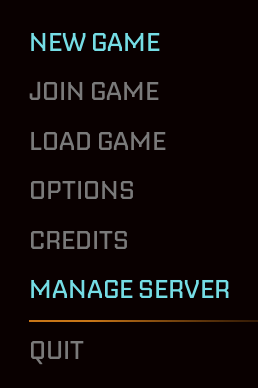
All StarRupture servers require a password setup before they can be joined, this is done by clicking the “Manage Server” option when launching the game, you should then enter your server’s IP:Port that you defined above in the commandline.
Joining your server
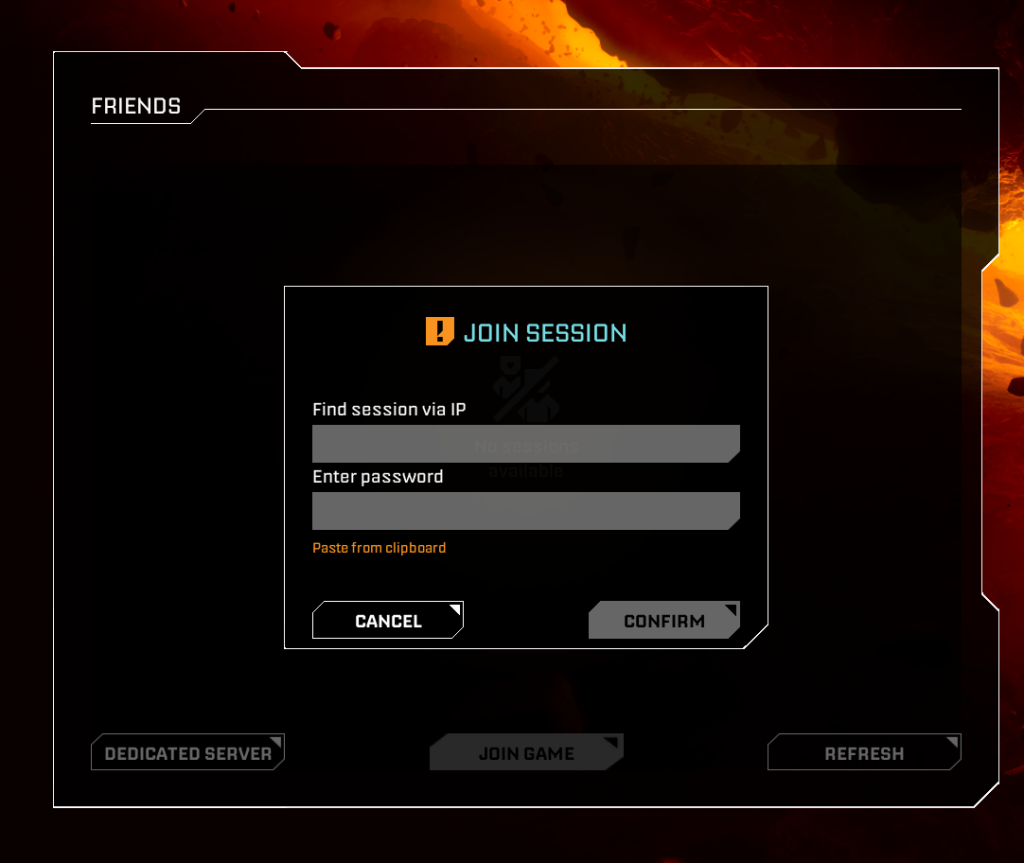
The game at the time of release does not have a server list, instead you click “Join Game” instead, then you enter the IP:Port – If a password was set via manage server, you then enter this in and join the server.
Managing players and permissions
Many modern dedicated servers provide a permissions or whitelist file (for example, permissions.txt in Return to Moria) to control what each player can do. StarRupture is likely to follow a similar pattern, allowing you to define admins, builders, and restricted users via configuration files or in‑game commands.
Common permission concepts
- Admin or operator: Full control over server commands and moderation.
- Default player: Standard gameplay access with normal building and interaction rights.
- Restricted roles: Limited building, storage access, or interaction, useful for public servers.
Always stop the server before editing any permissions file to avoid conflicts or data loss.
Performance optimization and backups
As your StarRupture world grows—with larger bases, more automation, and more players—server performance becomes increasingly important. Other dedicated‑server titles expose options like tick rate, loaded area limits, and performance caps to help balance CPU and RAM usage; expect StarRupture to offer similar tuning options in its configuration files.
General performance tips
- Monitor resource usage: Use Task Manager or Resource Monitor to watch CPU, RAM, and disk usage while the server is running.
- Reduce world load: If available, lower any “loaded area” or similar settings to reduce the number of active regions.
- Limit player count: Keep the maximum players in line with your hardware capabilities.
- Use SSD/NVMe: Faster storage significantly improves save/load times and reduces stutter.
Backing up your StarRupture world
Just like other dedicated servers that store worlds in a Saved\Worlds or similar directory, StarRupture will keep your world data in a specific folder inside the server installation path. Regular backups protect you from corruption, hardware failure, or accidental changes.
- Stop the server: Never back up while the server is running.
- Locate the world folder: Look for a
Saved,Worlds, or similarly named directory in the server folder. - Copy to backup location: Zip the folder and store it on another drive or cloud storage.
- Restore if needed: Replace the current world folder with your backup copy (with the server offline) to roll back.
Security best practices
Running a public or semi‑public StarRupture server means you should take basic security precautions, similar to other dedicated‑server environments.
- Use strong passwords: Set a strong admin password and, if supported, a server password for private groups.
- Whitelist trusted players: Use whitelists or invite‑only systems where possible.
- Keep Windows updated: Apply OS and router firmware updates regularly.
- Limit remote access: Only expose necessary ports and avoid sharing admin credentials.
Third‑party StarRupture server hosting
If you’d rather skip manual setup, several hosting providers already advertise StarRupture servers or plan to support them as the game matures. These services typically offer one‑click installs, web‑based control panels, and automated backups.
- Citadel Servers: Offers StarRupture game hosting with configurable rules, admin tools, and DDoS‑protected infrastructure.
Troubleshooting and official resources
For the most accurate, up‑to‑date instructions, always refer to the official StarRupture dedicated server article linked from the Steam Community discussions, as well as any documentation provided by the developers. These sources will include the exact App ID, port list, and configuration keys as they evolve during Early Access.
If you’re familiar with other dedicated‑server setups like The Lord of the Rings: Return to Moria, you’ll find the StarRupture process very similar: install via Steam or SteamCMD, generate config files, forward ports, tune performance, and keep regular backups. Once configured, your StarRupture dedicated server becomes the backbone of a persistent, shared sci‑fi world for you and your community.